Don't miss our holiday offer - up to 50% OFF!

How to Fix IPTV Buffering in 2026: 9 Proven Solutions That Work

Picture this. It’s Saturday evening, you’ve settled in for the match, you’ve got your drink, the sofa is comfortable, and then the screen freezes. That spinning circle appears. Three seconds. Ten seconds. The picture judders back to life just in time for you to miss the goal. Sound familiar?
If you’re trying to work out how to fix IPTV buffering and you’ve already Googled it three times this week, you’re not alone. Buffering is far and away the most complained-about problem among best IPTV subscription in UK users, and it’s frustrating precisely because the causes aren’t always obvious. Sometimes it’s your broadband. Sometimes it’s your router. Sometimes it’s the provider’s servers falling over at peak time. Getting to the actual answer requires a bit of methodical thinking, which is what this article is here to help with.
Why IPTV Buffering Is More Common Than It Should Be
IPTV streams video over the internet rather than through a satellite or cable infrastructure. That means every single variable in your internet chain, from your ISP’s backbone to the cable snaking behind your TV, can affect playback quality. Traditional broadcast television doesn’t have this problem. IPTV very much does.
The buffering itself is just a symptom. Your player is loading content faster than it can play it, so it pauses to fill its buffer. When that buffer empties before the stream catches up, playback stops. The fix depends entirely on which part of the chain is struggling.
There’s also a distinction worth making between occasional buffering and constant buffering. If you see it once every few hours during peak evening hours, that’s almost certainly a server-side issue with your provider. If it’s happening every few minutes regardless of time, the problem is likely local, on your side of the connection.
Start Here: The Basics Most People Skip
Before anything else, run a speed test. Open Speedtest by Ookla or Fast.com and note your results. For standard-definition IPTV you need around 10 Mbps. HD streams generally want 25 Mbps or more, and 4K IPTV can demand upwards of 50 Mbps sustained. If your test results sit below those thresholds, that’s your starting point.
Here’s what many guides don’t tell you though: a speed test showing 100 Mbps doesn’t mean your IPTV stream gets 100 Mbps. Other devices on your network are competing for that bandwidth. Streaming music, smart home devices, mobile phones downloading updates in the background, a laptop on a video call. They all take a slice.
So step one is actually this:
- Run a speed test
- Disconnect every other device from your network temporarily
- Test your IPTV stream again
- If the buffering stops, you have a bandwidth contention issue
If the problem disappears with everything else disconnected, you’ve already learned something useful.
How to Fix IPTV Buffering Through Your Network
This is where most solutions live, and it’s where I’d focus first before worrying about anything more technical.
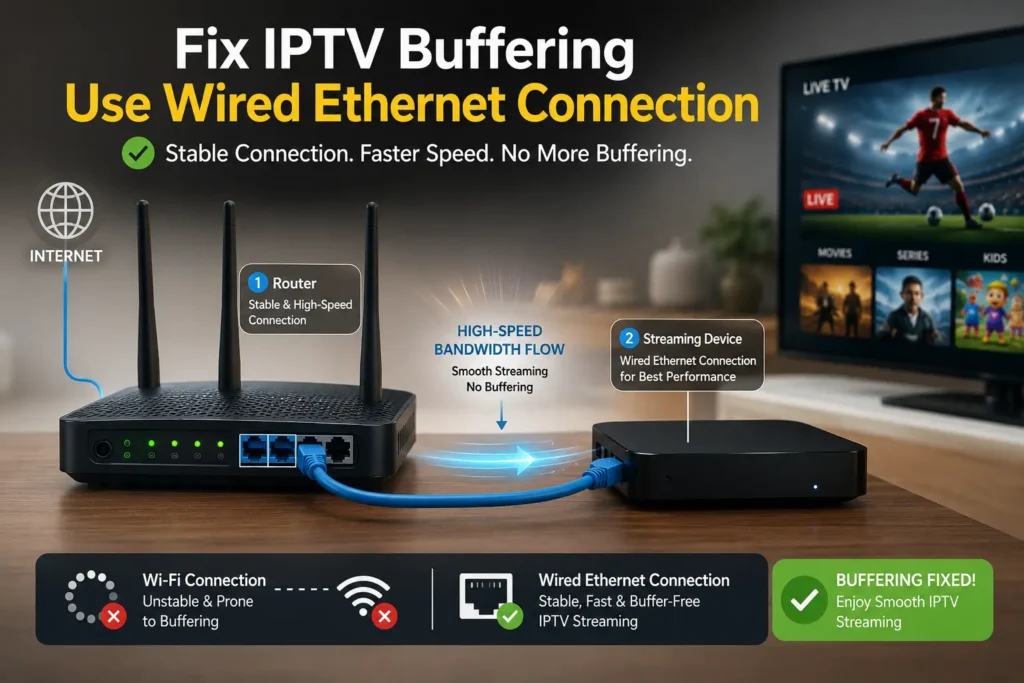
Switch from Wi-Fi to a wired connection. I can’t overstate how much difference this makes. Wi-Fi is convenient, but it introduces latency, signal interference from neighbouring networks, and packet loss. A Cat6 ethernet cable from your router to your streaming device costs a few pounds and can eliminate buffering entirely. If you’re watching IPTV on a device that doesn’t have an ethernet port, a USB-C to ethernet adapter or a powerline adapter kit are both solid solutions.
Restart your router properly. Not a quick toggle. Switch it off, wait a full 60 seconds, then switch it back on. Routers accumulate cache, handle ongoing connections, and sometimes just need to clear their head. This fixes more problems than people expect.
Change your DNS server. Your ISP’s default DNS can be slow. Switching to Google’s DNS (8.8.8.8 and 8.8.4.4) or Cloudflare’s (1.1.1.1) takes about two minutes and can measurably improve streaming response times. You’ll find this option in your router’s admin panel, usually accessed at 192.168.1.1 or 192.168.0.1.
Enable Quality of Service (QoS) on your router. Most modern routers support QoS settings, which let you prioritise traffic from specific devices or applications. Setting your IPTV device as high priority means it gets first access to available bandwidth before your teenager’s gaming session or anyone else’s.
| Fix | Difficulty | Likely Impact |
|---|---|---|
| Wired ethernet connection | Easy | Very High |
| Router restart | Easy | Medium |
| DNS change | Easy | Low to Medium |
| QoS settings | Moderate | High |
| Upgrade internet plan | Easy | High (if underpowered) |
Your Device Matters More Than You Think
The box or device you’re streaming on has its own processing limitations, and these contribute to IPTV buffering more than people realise.
Older Android TV boxes are a common culprit. A cheap device running a quad-core processor from 2017 can struggle with modern IPTV streams, especially H.265 encoded content. If your box is more than a few years old and feels sluggish generally, it might simply be underpowered for what you’re asking it to do.
Clear the cache on your IPTV app. Whether you’re using TiviMate, IPTV Smarters Pro, or GSE Smart IPTV, these apps accumulate cached data that can slow performance. On Android, go to Settings, then Apps, find your IPTV app, and tap “Clear Cache.” Do this monthly as good practice.
Check your app’s buffer size settings. Many IPTV players let you manually adjust the buffer. TiviMate, for example, has a network buffer slider in its settings. Increasing it means the app pre-loads more content before playback, which can absorb inconsistent internet speeds. A value between 10 and 20 seconds works well for most setups.
Use a VPN carefully. VPNs encrypt traffic and route it through servers elsewhere, which adds latency. For most IPTV use cases, a VPN will make buffering worse, not better. The exception is if your ISP is throttling streaming traffic specifically, in which case a good VPN like ExpressVPN or NordVPN might help. Test with and without to see which performs better in your situation.
Choosing the Right IPTV Provider (And Knowing When Yours Is the Problem)
Here’s an uncomfortable truth: sometimes you’ve done everything right on your end, and the problem is still happening because your provider’s infrastructure can’t cope with demand.
What does a provider-side issue look like? Buffering that only happens in the evenings, between about 7pm and 10pm. Buffering that affects multiple devices simultaneously. Issues that started recently without any change to your own setup. These patterns strongly suggest server overload on the provider’s end rather than anything wrong with your connection.
Not all IPTV providers are equal. The difference between a reliable service and a poor one often comes down to how many server resources they provision per user. Some IPTV Reseller UK Solutions for Reliable Streaming & Growth to run on minimal infrastructure and sell more subscriptions than their servers can handle. PCMag and TechRadar have both written extensively about the disparity in IPTV service quality, and it’s a genuine minefield.
If you’re experiencing persistent buffering during peak hours despite a solid home setup, ask your provider directly whether they have backup or catch-up servers you can switch to. Many providers offer multiple server lines for exactly this reason. If they don’t, or if they’re unresponsive, that tells you something important about the service.
finding a reliable IPTV provider → /best iptv providers in UK/
Advanced Fixes for Persistent IPTV Buffering
If the standard fixes haven’t resolved things, it’s time to look deeper.
Check for packet loss. Packet loss means data is being dropped somewhere between your ISP’s infrastructure and your device. A line that has 3 to 5% packet loss will buffer constantly regardless of its headline speed. You can test for this using tools like PingPlotter or simply by running a continuous ping test in your terminal or command prompt. If you’re seeing dropped packets, contact your ISP.
Update your router’s firmware. Router manufacturers release firmware updates that improve performance and fix bugs. Many routers have an auto-update option buried in settings, but plenty of people have never touched the firmware since they plugged the thing in. Check the admin panel and update if there’s a newer version available.
Consider a mesh Wi-Fi system if going wired isn’t an option. If your streaming device is two rooms away from your router and a cable run isn’t practical, a mesh system like Eero or TP-Link Deco will dramatically outperform a single router with a weak signal. The performance difference compared to standard Wi-Fi extenders or boosters is significant.
Switch IPTV player apps. Different players handle buffering differently. If you’re using a free or generic player, try TiviMate on Android if you haven’t already. It’s widely regarded as the best IPTV player available for Android devices and handles stream recovery much more gracefully than most alternatives.
When Nothing Seems to Work
Is there ever a situation where how to fix IPTV buffering becomes genuinely unsolvable on your end? Yes, occasionally.
If your broadband connection is fundamentally limited, a rural ADSL connection delivering 5 Mbps on a good day simply won’t support HD IPTV reliably. No app setting or DNS tweak will fix a physical infrastructure limitation. The only real answer there is upgrading to a better connection if one is available, or accepting a lower stream quality.
Similarly, if your IPTV provider’s servers are routinely overloaded and they’re unwilling or unable to address it, the answer is switching providers. It sounds obvious, but many people spend weeks trying to optimise their home setup without accepting that the service itself might be the weak link.
One thing worth trying before giving up: ask your provider for a different server URL or playlist. Many services have multiple server clusters, and the one you were originally given might be under heavier load than alternatives.
Frequently Asked Questions
Q: What is the main cause of IPTV buffering? The most common cause is insufficient internet bandwidth reaching the streaming device. This can stem from a slow broadband connection, Wi-Fi signal issues, too many devices competing for the same bandwidth, or router performance limitations. Server-side overload at your IPTV provider is the other frequent culprit, particularly during evening peak hours.
Q: How to fix IPTV buffering on an Android box specifically? Start by clearing the cache in your IPTV app, then increase the buffer size in the app’s settings if that option is available. Check whether your box is connected via Wi-Fi or ethernet, and switch to a wired connection if possible. If the device is more than three or four years old and struggles generally, an underpowered processor may mean the hardware itself needs replacing with a more capable model.
Q: Does a VPN help with IPTV buffering? It depends entirely on the cause. If your ISP is throttling streaming traffic, a VPN may help by masking the nature of the traffic. In most other situations, a VPN adds latency and routing overhead that makes buffering worse. Test with your VPN enabled and disabled during the same viewing session to see which performs better for your specific setup.
Q: How to fix IPTV buffering that only happens in the evenings? Evening buffering that clears up overnight is almost always a server-side issue. Your provider’s infrastructure is under peak load when everyone’s watching television at the same time. Ask your provider whether they have alternative server lines or URLs, and if peak-time performance is consistently poor, consider switching to a provider with better server capacity.
Q: How much internet speed do I actually need for IPTV without buffering? For SD streams, 10 Mbps is generally adequate. HD content needs around 25 Mbps for reliable playback, and 4K streams can require 50 Mbps or more. Bear in mind these figures apply to the IPTV stream alone. If other household devices are active simultaneously, you’ll need proportionally more headroom in your overall broadband speed.