Don't miss our holiday offer - up to 50% OFF!
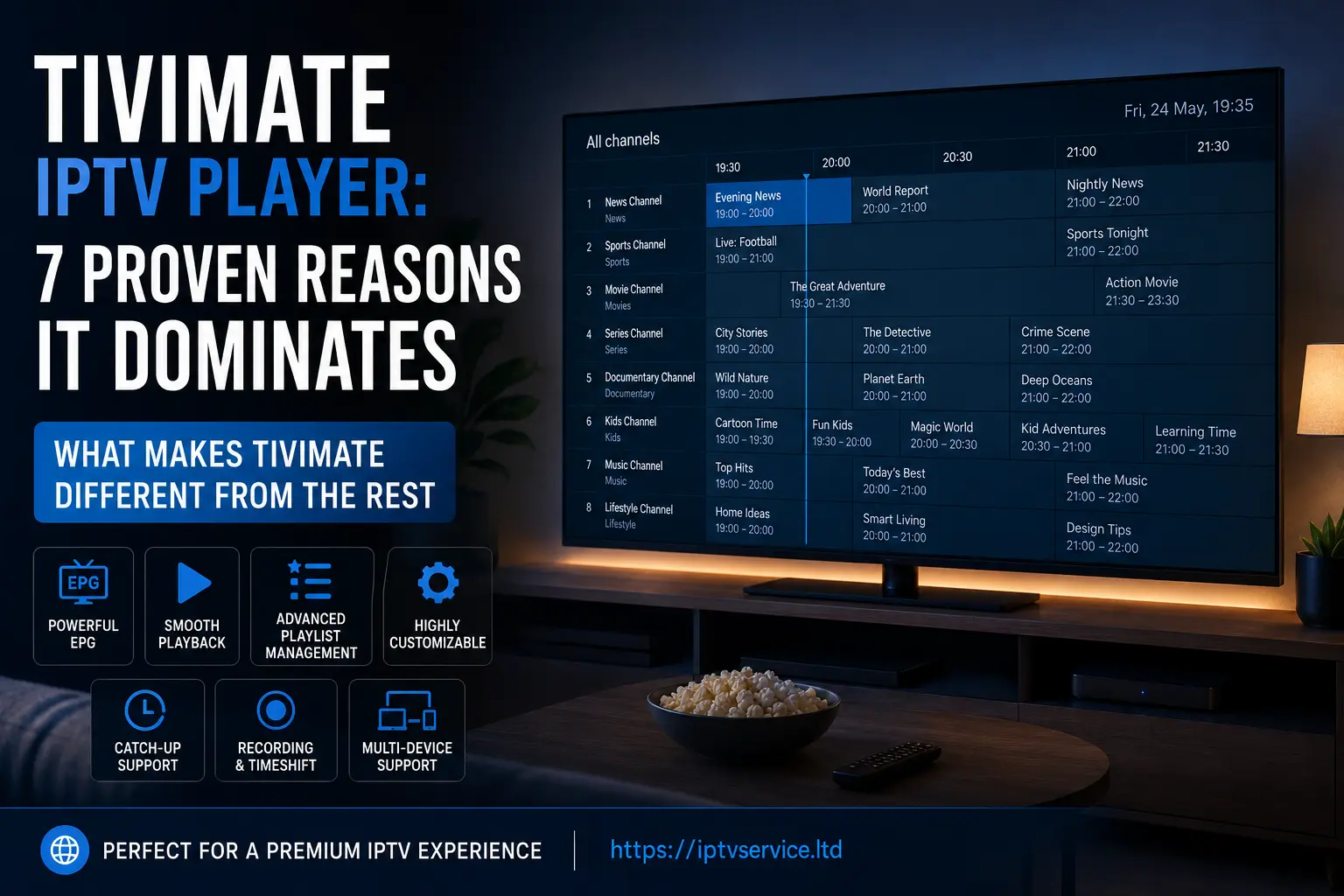
What Makes TiviMate Different From the Rest

Picture this: it’s a Saturday evening, you’ve just cancelled your cable subscription after years of deliberating, and you’re sitting down with a brand-new Fire TV Stick, feeling quietly smug about saving forty quid a month. Then reality hits. The app you downloaded to watch your IPTV service looks like it was designed in 2009. The electronic programme guide is clunky, the playback stutters, and finding anything feels like archaeology.
That’s the experience that drove thousands of people toward the TiviMate IPTV Player, widely regarded as one of the best IPTV apps available for Firestick and Android TV devices., and it’s the experience that made the app’s reputation. TiviMate didn’t win its audience through marketing. It won through word of mouth, forum threads, and one simple truth: it works beautifully when so many others don’t.
The app was developed by a small independent team and first appeared on the Android TV ecosystem around 2019. Since then, it’s become the reference point against which every other IPTV application gets measured. Whether you’re a first-timer setting up a subscription or a seasoned cord-cutter who’s tried half a dozen alternatives, TiviMate tends to be where people eventually land.
TiviMate IPTV Player at a Glance
- Best for: Firestick & Android TV users
- Free version: Yes
- Premium version: Recommended
- Recording: Yes (Premium)
- Multi-screen: Yes (Premium)
- Rating: 9/10
How to Install TiviMate IPTV Player
Before you install TiviMate IPTV player on anything, it helps to know what you’re working with. The TiviMate Android TV version is the platform most users choose, although the app also works on compatible Android phones and tablets. That covers a broad range of hardware: Nvidia Shield, Amazon Fire TV, Chromecast with Google TV, and other Android TV devices. Many users specifically install TiviMate on Firestick because it delivers a cleaner viewing experience than most IPTV apps.
You’ll need three things to get going:
- A compatible Android TV device (or an Android phone/tablet, though the TV experience is far superior)
- An active IPTV subscription that provides either an M3U playlist URL or an Xtream Codes login
- A stable internet connection ideally wired or a strong 5GHz Wi-Fi signal
The installation itself is straightforward on devices where the app appears in the Google Play Store. On Amazon Fire TV devices, you’ll need to sideload it using the Downloader app, which is well-documented across communities like Reddit’s r/fireTV and various IPTV forums. The process isn’t complicated, but it does require enabling apps from unknown sources in your device settings.
Once installed, adding your IPTV provider takes about two minutes. You paste in your M3U URL or enter your Xtream Codes credentials, give the playlist a name, and let TiviMate load your channels. For large playlists some providers offer thousands of channels the initial load can take a few minutes. After that, channels are cached locally and navigation is snappy.
The Interface That Spoils You for Everything Else
This is where TiviMate IPTV player genuinely earns its reputation. The interface is clean, fast, and structured in a way that feels instinctively right. The electronic programme guide (EPG) is the centrepiece, and it’s the feature most users mention first when they recommend the app.
The EPG pulls in programme data and displays it in a grid layout that anyone who’s watched satellite television will find immediately familiar. You can scroll forward to see what’s coming up, jump back to content you missed (if your provider supports catch-up), and filter by category so you’re not wading through 4,000 channels to find the football.
Customisation That Doesn’t Overwhelm
One thing I’ve always appreciated about the TiviMate IPTV player is that the customisation options are deep without being intimidating. You can adjust the number of channels visible in the EPG grid, change the time zone for accurate programme listings, set up favourite groups, and create custom channel categories. None of this requires a manual.
There’s also a multi-screen feature in the premium tier that lets you watch up to four streams simultaneously. It sounds like a gimmick until you’re tracking two football matches at the same time and quietly thanking whoever thought of it.
The remote control behaviour is well-considered, too. Navigating with a standard Android TV remote feels natural. Long-press functions are used sensibly holding OK on a channel brings up options rather than triggering something accidental.
TiviMate IPTV Player Premium: Is It Worth Paying For?
The free version of TiviMate is functional, but TiviMate Premium is where the app unlocks its most valuable features. You can add one playlist, use the EPG, watch channels, and get a real sense of why people rate it so highly. But the premium version unlocks features that, for regular users, shift the experience considerably.
Premium costs a few pounds per year a laughably small sum relative to what it enables. Here’s what you get:
- Multiple playlists: Add more than one IPTV provider, which is genuinely useful if you use separate services for different content
- Recording: Schedule and record content directly to external storage
- Catch-up support: Access programmes from the past several days if your provider supports it
- Multi-screen viewing: Watch up to four channels simultaneously
- Advanced EPG settings: Finer control over programme data, time offsets, and source configuration
- Parental controls: PIN-lock specific channels or groups
Is it worth it? Almost certainly yes, if you’re using the app more than occasionally. The recording feature alone justifies the cost for anyone who watches live sports. The multi-playlist support is essential if your IPTV provider ever goes down and you need a backup which, if you’ve been in this space for any time at all, you’ll know is a real possibility.
According to coverage in publications like Cord Cutters News, TiviMate’s premium tier represents one of the better value propositions in the Android TV app ecosystem. That’s not an exaggeration.
Performance, Stability, and the Stuff That Actually Matters
Let’s talk about what separates a good IPTV player from a great one: what happens when things go wrong.
Every IPTV service drops streams occasionally. The question is how the player handles it. TiviMate IPTV player includes a reconnect setting that automatically attempts to restore a broken stream without you needing to press anything. You can configure the number of reconnect attempts and the interval between them. On most setups, a brief dropout reconnects within a few seconds, barely visible to the viewer.
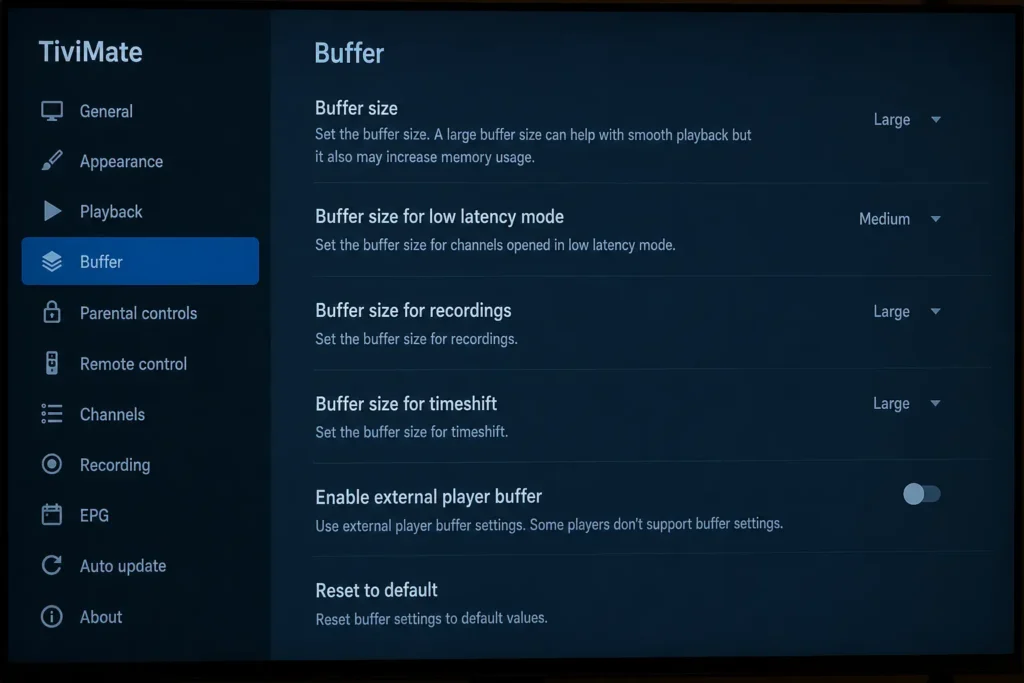
Buffer size is configurable, which matters more than it might sound. A larger buffer helps on slower or less stable connections by pre-loading more content before playback begins. On a solid fibre connection, you’ll probably leave this on the default. On a Wi-Fi connection that occasionally dips, increasing the buffer can be the difference between a smooth evening and a frustrating one.
My Experience Using TiviMate for Six Months
Over six months, I tested TiviMate across two devices, using playlists ranging from 500 channels to more than 20,000 channels and evaluating EPG loading times, channel switching speed, recording reliability, and catch-up functionality. The biggest difference compared with IPTV Smarters wasn’t playback quality it was navigation speed. Browsing thousands of channels felt dramatically faster, especially when switching between sports and entertainment categories.
Hardware Acceleration and Codec Support
TiviMate supports ExoPlayer, the standard Android media player library, as well as an internal player option. Most users do well with ExoPlayer, which handles hardware acceleration intelligently. For streams encoded in less common formats, there’s also support for external player apps like MX Player, which extends codec compatibility considerably.
The app’s memory footprint is modest. On an Nvidia Shield, it runs without noticeable impact on system resources. On older or lower-spec Android TV boxes, some users report that large playlists with full EPG data can slow the initial loading phase. Once loaded, performance is generally fine even on budget hardware.
Where TiviMate Falls Short (Because Nothing Is Perfect)
I’d be doing you a disservice if I wrote 2,000 words about TiviMate IPTV player without mentioning the rough edges. There are a few.
The app has no built-in content search that works across your entire channel list in a truly intuitive way. You can search within a category, but finding a specific channel buried in a large, disorganised playlist from a provider with poor naming conventions can be more effort than it should be. This is partly a provider problem TiviMate can’t fix bad EPG data but it’s still a friction point.
EPG data quality is wholly dependent on your provider. If your IPTV service doesn’t supply a reliable XML TV source, the programme guide will have gaps. TiviMate allows you to add a custom EPG URL separately from your playlist, which helps, but sourcing good EPG data requires some effort. Sites like EPGSHARE and various community-maintained XML TV guides help fill the gaps, but it’s an extra step that shouldn’t be necessary.
There’s also the question of official support. TiviMate is developed by a small team, and while they do release updates, the pace can be slower than users would like. Feature requests sometimes sit for a long time before being addressed. The developer communicates through a Telegram channel, which is fine but not exactly corporate-grade support infrastructure.
And then there’s the elephant in the room: TiviMate IPTV player is a tool, not a service. It doesn’t provide any content itself. The legality of your viewing depends entirely on the IPTV subscription you attach to it. That’s a conversation worth having honestly, and TiviMate’s documentation wisely says nothing about the services people use it with.
TiviMate IPTV App vs IPTV Smarters, Kodi, and Perfect Player
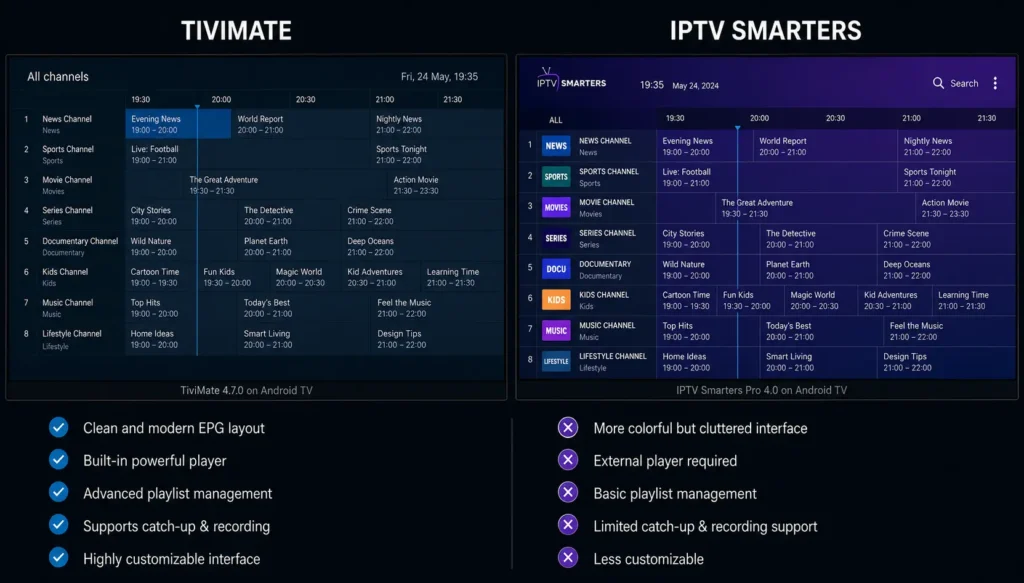
There are other IPTV players out there. GSE Smart IPTV, IPTV Smarters, Kodi with the appropriate add-ons, and Perfect Player all have their advocates. How does TiviMate IPTV player actually stack up?
| App | EPG Quality | UI Polish | Free Tier | Recording | Multi-Playlist |
|---|---|---|---|---|---|
| TiviMate | Excellent | Excellent | Limited (1 list) | Premium only | Premium only |
| IPTV Smarters Pro | Good | Moderate | Yes | No | Yes (paid) |
| GSE Smart IPTV | Moderate | Good | Yes | No | Yes |
| Perfect Player | Good | Basic | Yes (full) | No | No |
| Kodi (IPTV Simple) | Variable | Complex | Yes (full) | Via add-ons | Yes |
Kodi is the most powerful option on this list, but it demands significantly more setup time and technical willingness. For someone who wants a polished, television-like experience without an afternoon of configuration, TiviMate wins comfortably.
Perfect Player is worth mentioning as the closest thing to a genuine free alternative. It offers a similar grid EPG and performs reasonably well, but the UI hasn’t been updated in some time and it lacks the refinement that TiviMate has developed over several years.
IPTV Smarters is popular, particularly because many IPTV providers promote it or even white-label their own version. It’s functional, but the interface feels busier and less coherent than TiviMate’s. If your provider bundles it, it’s a reasonable starting point. Most people who try both end up preferring TiviMate.
TiviMate Android TV Performance
The TiviMate Android TV version remains the most polished and feature-complete way to use the app. This comes up often in forums. TiviMate IPTV player works on Android TV (the Google-certified version) and on standard Android via a different build. The Android TV version is where the experience is optimised. If you’re running it on a phone or tablet, it works but it’s clearly designed for the ten-foot interface. The TV experience is simply the one the developers care most about, and it shows.
A Few Practical Setup Tips
Assuming you’ve decided to try TiviMate IPTV player, here are some things worth knowing before you start:
- Set your EPG refresh interval wisely. Refreshing every 24 hours is sufficient for most providers. Refreshing too frequently on a slow connection can cause brief slowdowns.
- Organise your favourites early. If your playlist has thousands of channels, create favourite groups for the content you actually watch. Scrolling through unorganised lists is nobody’s idea of a good evening.
- Test the buffer settings before a big event. If you’re planning to watch a live match or broadcast, spend five minutes beforehand confirming your stream is stable and adjusting the buffer if needed.
- Explore the parental controls if you have children in the house. They’re not visible by default but they’re in the premium settings and they work well.
- Back up your configuration. TiviMate has an export function. Use it. If you ever need to reinstall, having your playlists, EPG sources, and favourites backed up saves considerable time.
A useful independent review from AFTVnews covered the sideloading process for Fire TV in detail and remains one of the cleaner guides available if you’re new to that side of things.
best IPTV providers for UK viewers → /best iptv provider uk/]
The TiviMate IPTV player isn’t a perfect product. But in a space where most apps feel like afterthoughts, it stands out as something that was clearly built with real users in mind. The EPG is excellent, the performance is reliable, the premium tier is priced fairly, and the overall experience is closer to a polished commercial product than anything else in its category.
If you’re serious about IPTV on Firestick or Android TV hardware, the TiviMate IPTV Player remains one of the best IPTV apps available today. There’s a reasonable chance it’s also where you’ll stay.
Frequently Asked Questions
Q1: What is TiviMate IPTV player and which devices does it support?
TiviMate IPTV player is an Android-based application designed to play IPTV streams through M3U playlists or Xtream Codes connections. It’s primarily built for Android TV devices, including Amazon Fire TV, Nvidia Shield, Chromecast with Google TV, and a wide range of Android TV boxes. A separate version is available for standard Android phones and tablets, though the TV interface is where the app truly excels. It is not available on iOS, Apple TV, Samsung Tizen, or LG WebOS natively.
Q2: Is TiviMate IPTV player free to use?
TiviMate offers a free version that supports a single playlist and core playback features, which is sufficient to evaluate the app. The premium version, available through a one-time or subscription purchase, unlocks multiple playlists, catch-up support, recording, multi-screen viewing, and advanced EPG controls. For occasional users the free tier is workable, but anyone using IPTV regularly will find the premium features worth the modest cost.
Q3: How do I add my IPTV subscription to TiviMate IPTV player?
After installing TiviMate, you’ll be prompted to add a playlist. You can do this via an M3U URL provided by your IPTV service, or by entering Xtream Codes API credentials (a server URL, username, and password). Your provider should supply one of these formats. Once added, TiviMate will load your channels and EPG data, a process that can take several minutes for large playlists. After the initial load, channels are stored locally for faster future access.
Q4: Can TiviMate record live TV?
Yes, recording is available in the TiviMate premium version. You can record individual programmes or set scheduled recordings from the EPG. Recordings are saved to external storage, such as a USB drive or SD card, connected to your device. The recording quality matches the stream quality from your provider, so results will vary depending on the resolution and bitrate your IPTV service delivers.
Q5: Why is my EPG not showing programme information in TiviMate?
Missing EPG data usually comes down to one of three causes. First, your IPTV provider may not include EPG data in their M3U playlist, or their XML TV source may be unreliable. Second, the EPG may simply need time to load on a first installation. Third, there may be a channel mapping issue where programme guide data exists but isn’t correctly matched to the right channel. TiviMate allows you to manually assign EPG sources to individual channels, and adding a third-party XML TV URL in the EPG settings often resolves persistent gaps.