Don't miss our holiday offer - up to 50% OFF!
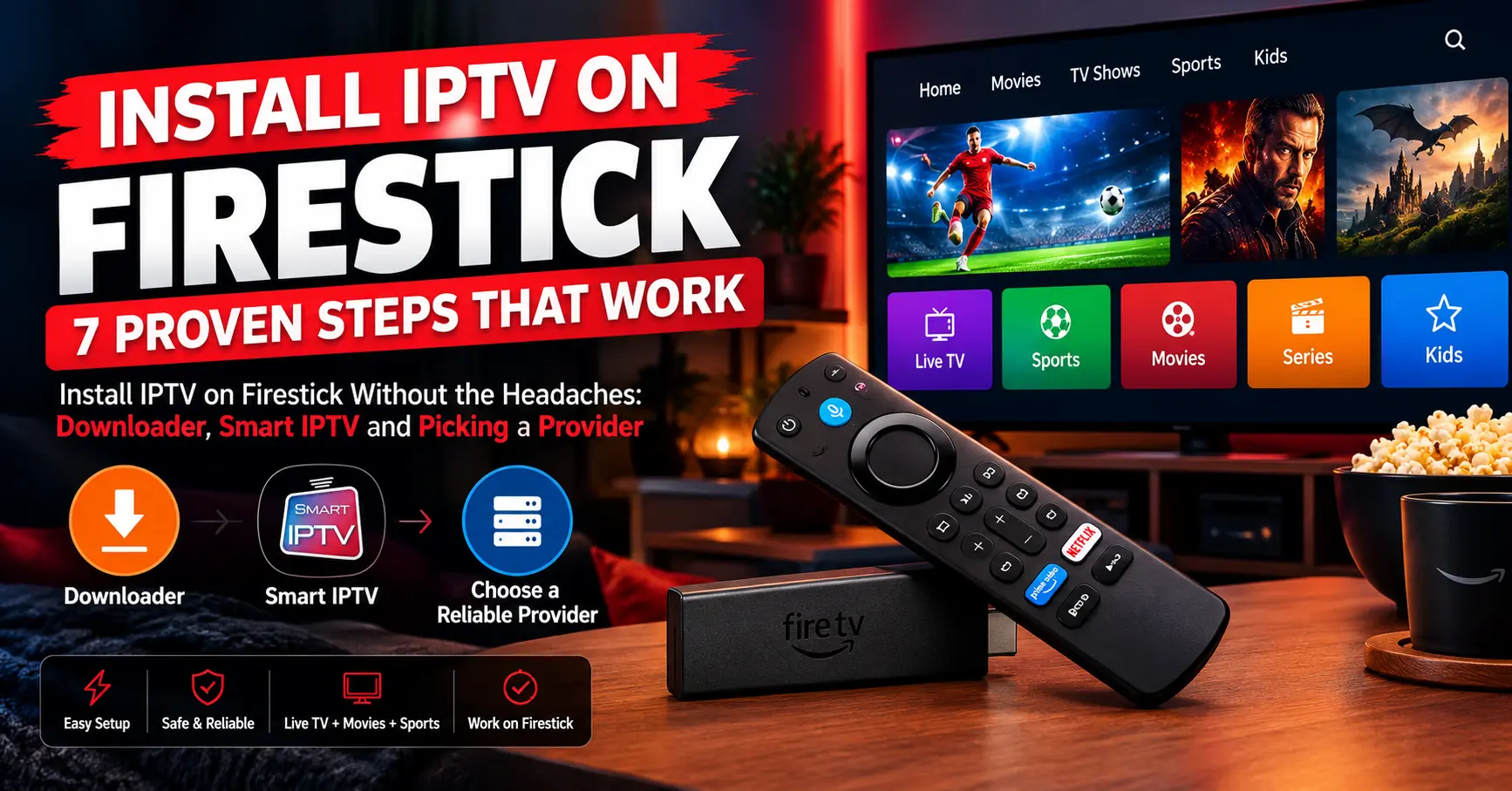
Install IPTV on Firestick Without the Headaches: Downloader, Smart IPTV and Picking a Provider

Last winter my brother-in-law rang me at ten o’clock on a Sunday night, absolutely furious with a small black plastic stick.
He’d spent two hours trying to install IPTV on Firestick after watching a video that skipped half the steps. By the end he’d switched on the wrong setting, downloaded something dodgy and locked himself out of a menu. I talked him through it over the phone, and it made me realise how badly this process is explained online.
Consider this the guide I wish he’d had. It’s based on setting up more sticks than I can count, for friends, family and my own living room. Along the way I’ll cover the practical bits, the risks, and the questions worth asking before you hand over a penny.
Fair warning: not everything here is tidy. The Firestick is a brilliant little device, but IPTV sits in a grey area of quality and legality. I’ll be straight about where it works well and where it doesn’t.
Why Most People Get Stuck Before They Start
Ask ten people why their setup failed and you’ll hear ten different stories. The pattern underneath is surprisingly consistent, though. Most folks treat the stick, the app and the subscription as one single thing, when they’re really three separate pieces.
Once you separate them, the whole business stops feeling like a puzzle. The Firestick is simply the hardware. The player is an app that knows how to display a list of channels, and the provider is the company that supplies the list itself.
That distinction matters more than it sounds. Plenty of people who try to install IPTV on Firestick blame the device when pictures freeze, yet the stick is rarely at fault. The cause is usually the service behind the stream, or the home network sitting between you and it.
Why does this matter so much? Because it tells you where to spend your effort. A brilliant app can’t rescue a poor server, and a good server can’t survive a weak Wi-Fi signal in the back bedroom.
Get those three layers right and everything else is straightforward. Let’s take them one at a time.
Before You Install IPTV on Firestick: The Shopping List
Preparation saves more time than any clever trick. Think of this as the checklist I run through every time I install IPTV on Firestick for a friend or relative. Gather everything first, and the process takes minutes rather than an evening.
- A Firestick on recent software. The Fire TV Stick 4K or newer is comfortable, while older Lite models cope but feel sluggish with big playlists.
- A steady connection. Aim for roughly 15 Mbps per HD stream and 25 Mbps or more for 4K, with headroom for other devices in the house.
- An Amazon account already signed in on the stick.
- The Downloader app by AFTVnews, which is free in the Amazon Appstore.
- Your provider’s details, which usually arrive as an M3U link, Xtream Codes login or portal address.
- A phone with the Fire TV app, because typing long web addresses with the on-screen keyboard is miserable.
Two small extras are worth considering. An Ethernet adapter steadies a wobbly connection far better than any Wi-Fi extender I’ve tried, and a surge-protected power supply keeps the stick from rebooting mid-match.
Amazon’s own Fire TV help pages are a sensible place to confirm menu names for your particular model, since labels shift between software versions. Keep them open in a browser tab while you work.
Your Home Network Matters More Than the Stick
Stand in front of your television and check your Wi-Fi signal on a phone. Not in the kitchen, not beside the router, right there on the sofa. That reading tells you more about your future viewing than any spec sheet.
Firesticks tuck behind televisions, surrounded by metal and plastic, which is close to the worst place for a wireless receiver. A weak signal won’t always throw an error message. It simply shows up as pixelation, stuttering and a spinning wheel at the worst possible moment.
The 5GHz band is faster but covers less distance, while 2.4GHz travels further but is slower and more crowded. Try 5GHz first, and fall back only if the stick sits far from the router.
Ethernet changes everything, if you can manage it. Amazon sells an adapter for compatible Fire TV devices, and it’s the single most effective upgrade I’ve made to a stubborn setup.
Picking a Premium IPTV Service That Deserves Your Money
Here’s where I get opinionated. Before you install IPTV on Firestick, spend your effort on the provider rather than the app, because the provider decides whether you’ll actually enjoy what you’ve built.
A premium iptv service should behave like any other subscription you’d pay for. It needs clear pricing, a support channel that answers, and some way to test before you commit. If the only contact is a throwaway chat handle that vanishes after payment, walk away.
I’ve learned to judge by boring signals rather than flashy channel counts. Anyone can claim twenty thousand channels. Few can show stable servers during a big football final, and fewer still reply to a ticket within a day.
This is the quick comparison I use when a friend sends me a link and asks, “Is this any good?”
| Signal | Healthy sign | Red flag |
|---|---|---|
| Testing | Short trial or one-month plan | Only long plans, no refunds |
| Support | Ticket system or live chat with stated response times | Social media messages only |
| Payment | Card or PayPal with receipts | Gift cards or irreversible transfers only |
| Server behaviour | Steady at peak times, backup servers | Constant freezing on busy evenings |
| Pricing | Published, consistent tiers | Suspiciously cheap lifetime deals |
Cheap isn’t always poor, and pricey isn’t always polished. Lower-cost plans often squeeze more users onto each server, so evening performance can dip. Higher prices don’t guarantee better service either, which is exactly why a trial matters.
When you do test a service, make it a proper test rather than a quick glance:
- Watch live content on a weekend evening, when servers are busiest.
- Switch channels repeatedly and note how long each takes to load.
- Ask the support team a genuine question and time the reply.
- Check the programme guide against a couple of shows you know.
- Leave a stream running for an hour to see whether it drops.
Pass all five and I’d consider paying. Fail even two, and I wouldn’t touch it, however good the price looks.
Consumer champions such as Which? have published guidance on loaded streaming devices and the risks that come with them, and it’s worth reading before you spend anything. For a deeper look at server quality, pricing tiers and what genuine support looks like, see Premium IPTV Subscription Explained: Servers, Pricing and Real Support.
The IPTV Reseller Question Nobody Asks Early Enough
Nearly every subscription you’ll see advertised isn’t sold by the people running the servers. It’s sold by an IPTV reseller, someone who buys credits from a larger panel and passes access on at a margin.
Neither side of that arrangement is automatically bad. Plenty of resellers offer friendlier support than the big operators, and some genuinely care about a small customer base. The catch is that you’re relying on two businesses instead of one.
Whoever sells you the login, the technical process is identical once you install IPTV on Firestick. The risk profile isn’t. If the panel behind your reseller gets shut down, your subscription can vanish overnight, and no amount of polite email will bring it back.
Only last spring a neighbour of mine learned this the hard way. He’d paid for a year upfront because the price looked fair. Six weeks later the seller’s website was gone, and so was his money.
Put three questions to any seller before paying. Who actually runs the servers? What happens to my account if you stop trading next month? And does anyone in the chain hold the rights to what’s being streamed? Honest sellers answer without drama, while evasive ones tend to answer with discounts.
Curious about the business side? I’ve unpicked how it works in how an IPTV reseller panel works. And if you’re thinking of becoming a reseller yourself, read that first, because the legal and support obligations are heavier than most people expect.
How to Install IPTV on Firestick Using Downloader
What follows is the full process to install IPTV on Firestick, in the order I’d do it. Menu names match recent Fire OS versions, though Amazon rearranges things from time to time. If your screen looks slightly different, the logic stays the same.
Phase one: unlock the stick for outside apps
- From the home screen, open Settings, then My Fire TV, then About.
- Highlight your device name and press Select seven times until a message says you’re now a developer.
- Go back, open Developer Options, and turn on the setting for installing unknown apps. On newer software, you grant this permission to Downloader specifically when it first asks.
It sounds alarming, but it’s simply how Amazon handles apps from outside its store. You’re allowing one trusted app to fetch files, not opening the door to everything.
Phase two: fetch and install the player
- Return to the home screen, search for Downloader, and install it from the Amazon Appstore.
- Open Downloader and allow access to files when prompted.
- Type the official download link from your chosen player’s developer into the address box, then press Go.
- When the download finishes, select Install, then Open.
- Delete the installer file afterwards, because Firesticks have modest storage and tidying as you go prevents trouble later.
Worth stressing: only download from the developer’s own website or a source you genuinely trust. An APK from a random forum is the quickest route to malware, and I’ve watched it happen to two people I know. If you only follow one rule while you install IPTV on Firestick, make it this one.
Phase three: add your provider’s details
After the player is installed, you’ll feed it your provider’s details. Most apps accept one of three formats: an M3U playlist link, an Xtream Codes login, or a portal URL. Your provider will say which to use, and the app’s menu usually makes the choice obvious.
Enter the details slowly, using your phone as a keyboard if you can. A single misplaced character is the most common reason for a blank screen on first launch. Give the app a minute or two to load a large list, because patience is rewarded here.
Getting Smart IPTV Running on Your Stick
Smart IPTV deserves its own section because it works differently from most players. It’s a player only, with no channels of its own, and it doesn’t ask for login details inside the app. Instead, it shows a MAC address on screen, and you upload your playlist through the developer’s website using that address.
There’s usually a free trial period, followed by a one-off activation fee. Check the developer’s site for the current price and terms, because they change, and read them before you get attached to the setup.
In practice, the routine goes like this. Open the app and note the MAC address. On your phone or laptop, visit the Smart IPTV website, enter that address, and add your playlist link. Restart the app, and your channels should appear within a minute or two.
Weighing up players? This comparison reflects what I’ve found useful rather than any official ranking.
| Player | Setup style | Best for | Trade-off |
|---|---|---|---|
| Smart IPTV | MAC address and web upload | Simple, set-and-forget use | Dated look, activation fee |
| IPTV Smarters Pro | Login or playlist inside the app | Easy first-time setup | Interface can feel busy |
| TiviMate | Playlist or Xtream inside the app | Polished guide and favourites | Some features need a paid upgrade |
Simplicity is the draw with Smart IPTV. It copes with large playlists without much fuss, and it rarely needs attention once it’s working. The trade-off is an interface that looks dated, plus a reliance on the developer’s website staying online.
Honestly, if you want a slicker guide and catch-up layout, you may prefer one of the other two. I keep Smart IPTV on sticks belonging to relatives, though, because they want it to work and never touch the settings. It’s a handy option whenever you install IPTV on Firestick for someone less technical.
When Things Go Wrong: Quick Fixes That Work
Even a tidy setup hits snags eventually. Here are the ones I see most often, along with the fixes that work.
| Problem | Likely cause | Quick fix |
|---|---|---|
| Buffering in the evening | Busy server or weak Wi-Fi | Try Ethernet, then ask your provider about another server |
| Black screen on launch | Wrong playlist link or corrupted install | Re-enter details, clear the app cache, or reinstall |
| Login failed | Typo or expired subscription | Retype using your phone, then check the expiry date |
| No programme guide | Missing guide link | Add the guide address in settings and wait for a refresh |
| App keeps crashing | Low storage | Remove unused apps and restart the stick |
Almost all of these take under five minutes to sort. When they don’t, the problem usually points back to the provider. Note the exact error message before you email support, because it speeds up the reply enormously.
Having managed to install IPTV on Firestick correctly, you might still see constant freezing. Try a different service for a day before blaming the hardware.
I once spent forty minutes blaming a Firestick for buffering, only to discover my router was tucked behind a fish tank. The water was swallowing half the signal. Sometimes the fix is a shelf, not a setting.
Clearing an app’s cache is the fix people overlook. Open Settings, Applications, Manage Installed Applications, choose the player, and select Clear cache. Avoid Clear data unless you’re happy to re-enter every login.
Keeping It Safe, Legal and Sensible
Time to be adults about this. Owning a Firestick, using Downloader and installing an IPTV player are all perfectly legal. What matters is the content you stream through them, and whether the people supplying it hold the rights.
Streaming copyrighted channels without permission is infringement in the UK and most other countries. Rights holders and groups such as FACT, the Federation Against Copyright Theft, have publicly pursued sellers, and services can be shut down with little warning. That’s a practical risk for you as well as a legal one.
Where you can, use licensed services. Many broadcasters and operators offer legitimate IPTV-style packages and apps, and they tend to be the safest, steadiest option. Even a flawless attempt to install IPTV on Firestick can leave you exposed if you ignore the basics below.
- Pay by card or PayPal so you have some buyer protection if a seller disappears.
- Never reuse a password from your email or banking on any IPTV account.
- Keep Fire OS updated, and remove apps you no longer use.
- Be wary of any app asking for permissions that have nothing to do with video.
Where This Leaves You
His Sunday night ended with the match on screen and him grumbling about the commentary instead of the setup. That’s the outcome worth aiming for.
If there’s a theme running through this guide, it’s patience. The best way to install IPTV on Firestick is slowly, with a trial plan, a provider you can actually reach, and a player you understand. Rush any one of those and you’ll feel it by the second weekend.
Pick your provider carefully, start with a short plan, and keep this page handy for the next time something misbehaves. Then settle back, put your feet up, and let the stick do the work.
Frequently Asked Questions
How long does it take to install IPTV on Firestick?
Realistically, about ten to fifteen minutes if you’ve gathered everything first. Enabling developer options and installing Downloader takes around five of those. Downloading the player and entering your provider’s details takes the rest. Add time if you’re waiting for a playlist to load or a provider to send your login.
Do I need a premium IPTV service, or can I use free playlists?
Free playlists exist, but they’re unreliable and often dead within days. A paid plan from a reputable provider usually gives steadier streams and someone to contact when things break. That said, paying doesn’t guarantee quality, so use a trial first. Whatever you choose, check that the service operates with proper licensing.
Is it safe to install IPTV on Firestick with Downloader?
Downloader itself is a well-regarded app, and sideloading is reasonably safe when you fetch files from the developer’s own website. The risk comes from the files you download, not the tool. Stick to official sources, avoid files from forums, and delete installers afterwards. Caution about where files come from is your best protection.
What is Smart IPTV, and does it come with channels?
Think of Smart IPTV as an empty television. It’s a player app that displays a playlist, and it supplies no channels itself. You upload your provider’s playlist through the developer’s website using the MAC address shown in the app. After a trial period, there’s typically a one-off activation fee.
Should I buy from an IPTV reseller or the main provider?
Either can work, so judge each seller on its habits rather than its label. A reseller may offer friendlier support, but you depend on both the reseller and the panel behind them. Ask who runs the servers, what happens if they stop trading, and whether you can test first. Buying with a card or PayPal adds a layer of protection either way.