Don't miss our holiday offer - up to 50% OFF!

IPTV Troubleshooting Guide: Fix Buffering, Freezing and Login Errors

It’s the 88th minute, your team is a goal down, and that little wheel starts spinning. You hammer the remote. Nothing. I’ve been there more times than I care to admit, which is exactly why I take IPTV Troubleshooting so seriously.
Here’s the good news. Most streaming faults aren’t mysterious, and they rarely need an engineer. After fifteen years around broadband, set-top boxes and streaming platforms, I’ve learned that IPTV Troubleshooting is mostly about asking the right question in the right order.
This guide follows that order. I’ll cover the IPTV Buffering causes hiding on your side of the router, the ones that belong to your provider’s iptv panel, and there’s a section for anyone who works as an IPTV Reseller.
One honest note before we start. Make sure the service you use is properly licensed where you live. The fixes below work either way, but an unlicensed service can vanish overnight, and no tweak will bring it back.
First, Check the Boring Stuff
Before you blame your provider, blame the Wi-Fi. It’s not cynicism, it’s also where good IPTV Troubleshooting begins. By my own rough tally, around seven in ten complaints I’ve handled traced back to the home network rather than the stream itself.
Restart everything, and do it in the right order. Switch off the streaming device, then the router, wait thirty seconds, power the router up, and only then wake the device. It sounds like folklore, yet it clears stale sessions and cached DNS entries more often than you’d expect.
Speed comes next. Run a test with Ookla’s Speedtest or Fast.com, ideally while the problem is happening. For live HD I want a steady 10 Mbps of real headroom, and for 4K I’d want closer to 25 Mbps, because live streams can’t buffer far ahead the way on-demand video does.
Don’t trust the number on your bill, either. Ofcom’s home broadband performance research has repeatedly shown that evening speeds can sag well below daytime figures. That sag lands precisely when most of us settle down to watch.
Then there’s the Wi-Fi itself. A device two rooms away on crowded 2.4GHz will struggle. Switch to 5GHz, move closer, or run an Ethernet cable. If cabling is impossible, a powerline adapter is a decent compromise, though it’s not perfect in older houses.
IPTV Troubleshooting Starts With Finding the Faulty Link
Think of your setup as four links in a chain: your network, your device, your player app, and the service itself. A break in any one of them looks identical on screen. That’s why guessing wastes an evening.
Grab a second device, ideally a phone on mobile data, and run a few quick comparisons. The results narrow things down fast.
| What you try | What happens | Likely culprit |
|---|---|---|
| Same stream on a phone over mobile data | Plays fine | Your home network |
| Same stream on a second device, same Wi-Fi | Also buffers | Router, ISP or provider |
| A different channel on the same device | Only one channel fails | Source or provider |
| Same device, different app | Works in one app only | Player app settings |
| Any device, any channel | Won’t log in at all | Account or panel side |
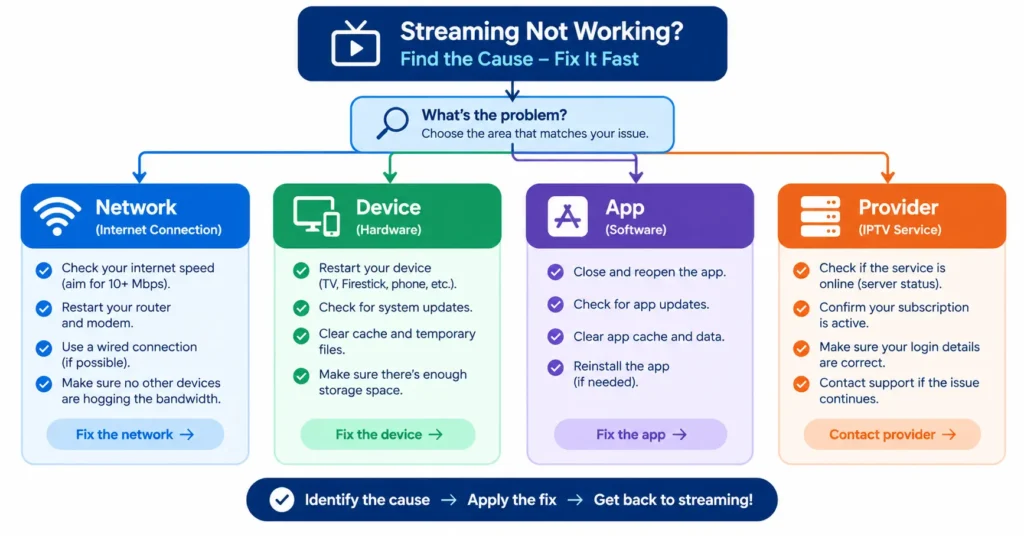
Why bother with this? Because fixing the wrong link is the most common mistake I see. Someone replaces a perfectly good streaming stick when the real culprit was a connection limit on their account.
Good IPTV Troubleshooting is elimination, not luck. Write down what you tried and what changed. You’d be amazed how often the pattern shows itself on paper.
Why IPTV Buffering Happens, and What Each Cause Feels Like
Not all buffering is equal, and the pattern tells you a lot. Every serious round of IPTV Troubleshooting begins with reading that pattern. I sort it into three kinds.
Constant buffering on every channel
If every stream stutters from the first second, suspect bandwidth or Wi-Fi. Another household member downloading a game update can be enough. Check the connected devices in your router app and pause the heavy hitters.
Evening-only IPTV Buffering
Fine at noon, dreadful at 8pm? That points to congestion, either on your ISP’s network or on the provider’s servers. Some ISPs also shape traffic at peak times, though that’s hard to prove. A different DNS server or, as a last resort, a VPN can reveal whether throttling is involved.
One channel or one package misbehaving
When only one channel stalls while others run smoothly, your connection is probably innocent. Popular live events can overload a single source, especially on big football or boxing nights. Waiting ten minutes sometimes works better than any setting.
My IPTV Troubleshooting Checklist: Nine Proven Fixes
Work through this IPTV Troubleshooting list in order. I’ve ranked it by effort, so quick wins come first and fiddly ones last.
- Restart the device and router in sequence, as described above.
- Move to Ethernet or 5GHz Wi-Fi.
- Pause downloads, cloud backups and other streams on the network.
- Clear the app’s cache, or reinstall it. On a Fire TV Stick that’s under Settings, then Applications.
- Adjust the player. In apps such as TiviMate, IPTV Smarters Pro or VLC, try a larger buffer size or switch the decoder between hardware and software.
- Change your DNS to Cloudflare’s 1.1.1.1 or Google’s 8.8.8.8.
- Test with a VPN on, then off, to rule throttling in or out. It helps some people and slows others, so treat it as a test, not a cure.
- Update the app and device firmware, and check the device isn’t overheating. Cheap sticks throttle themselves when hot.
- Rule out account problems: an expired line, a wrong username, or more simultaneous connections than your plan allows.
Should all nine fail, you’ve gathered excellent evidence. That’s exactly what your provider needs to hear.
When the Fault Sits Inside the iptv panel
An iptv panel is the dashboard where a provider or reseller manages lines, credits, bouquets, connection limits and server load. You’ll never see it as a viewer. Yet it controls a surprising amount of what you experience.
Symptoms of a panel-side issue are fairly distinctive. Every user buffers at the same hour, a channel disappears for everybody, or logins fail despite correct details. No amount of tinkering at home will solve those.
Cheap credits often mean crowded servers, and I’ll say it plainly: a rock-bottom price is usually paid for in evening stalls. That doesn’t make every budget provider bad. It does mean you should test before committing.
My own advice on choosing well lives in a separate piece, Before You Buy Another Credit: The Honest Guide to Picking an IPTV Reseller Panel Provider → / iptv reseller panel provider. Read it before you top up again.
Ask for a trial, test it on a busy Saturday evening, and keep your IPTV Troubleshooting notes handy. A provider who answers a precise bug report quickly is worth more than ten channels you’ll never watch. If you want a repeatable method, see how to test a stream before you commit.
What to Check Before You Buy IPTV Credits
Credits are the currency of the reseller world. You load them into an iptv panel, and each one buys a set period of access for a line. So where you buy them matters as much as how many you buy.
I won’t name a seller, because I can’t vouch for anyone’s licensing from the outside. What I can give you is the checklist I’d run before parting with any money:
- Ask for proof of rights. A genuine provider can explain where their content comes from and what licences cover it.
- Start small. Buy the smallest pack first and treat it as a trial, not a bulk deal.
- Test at peak time. Run the same IPTV Troubleshooting routine you’d use at home, and watch for stalls when the servers are busiest.
- Read the refund and expiry terms. Some credits lapse if unused, and some sellers refuse refunds outright.
- Judge the support. Send a real question before you buy and time how long the answer takes.
- Pay traceably. A card or PayPal payment gives you some recourse, while untraceable payments leave you with none.
where to buy IPTV credits → /buy iptv credits
Be wary of anyone promising unlimited everything for pennies. If the price looks absurd, somebody is paying for it, and it’s usually you, through evening stalls or a service that disappears. A slick website proves nothing either, so judge on evidence, not marketing.
A Word to the IPTV Reseller Reading This
Your customers don’t know what a panel is, and they shouldn’t have to. They know the picture froze and they want it fixed. If you’re an IPTV Reseller, support quality is the product, and IPTV Troubleshooting is the heart of support.
A tidy first-response routine saves hours. I’d ask every customer the same five things before touching the iptv panel:
- Which device and app are they using?
- Are they on Wi-Fi or cable?
- Does it happen on every channel or just one?
- What time did it start, and does it repeat every evening?
- Does a second device show the same fault?
Only then open your iptv panel and check the line status, expiry date, active connections and the load on the relevant server. Half the tickets will be solved by the questions alone.
There are trade-offs, of course. Shared servers are cheaper but less predictable, and a dedicated server can cost more than a small IPTV Reseller will recover. Be honest with customers about which model they’re buying, and make sure the content you resell is properly licensed.
The Symptom Cheat Sheet
Pin this table somewhere handy. It won’t cover every case, but it covers most.
| Symptom | Most likely cause | First thing to try |
|---|---|---|
| IPTV Buffering on every channel | Weak Wi-Fi or low bandwidth | Ethernet or 5GHz, then a speed test |
| IPTV Buffering only in the evening | Congestion at ISP or server | Change DNS, test a VPN, contact provider |
| One channel freezing | Overloaded source | Wait, try a backup stream, or ask provider |
| Picture fine, no sound | Audio codec or app setting | Change audio track or decoder |
| Login or “expired” error | Account or connection limit | Check line status, log out other devices |
| Black screen on launch | Corrupted cache or outdated app | Clear cache, update or reinstall |
| Guide data missing | Out-of-date EPG source | Refresh playlist and EPG in the app |
Fixes I’d Skip, and One I Reluctantly Recommend
Years ago my brother-in-law Dave spent £60 on a Wi-Fi extender because his football stream kept freezing. It made no difference at all. The real culprit was a tired streaming stick cooking itself behind the telly.
Was the extender a waste? Mostly, yes. Signal boosters can help with weak coverage, but they won’t cure an overloaded server or an overheating device.
Skip registry cleaners, so-called buffer boosting apps and any box sold as buffer-free. I’ve tested a few, and they mostly rearrange the same bandwidth. Save your money for a decent router.
The one I reluctantly recommend is a VPN. Some ISPs do slow streaming traffic, and a VPN can sidestep that. It also adds latency, can break some apps, and may breach a provider’s terms. In IPTV Troubleshooting terms, think of it as a diagnostic tool first and a fix second.
Keeping Streams Stable Once They’re Fixed
Prevention is the cheapest form of IPTV Troubleshooting, and it’s gloriously boring. Reboot your router monthly, keep apps updated, and give your streaming device some breathing room so it doesn’t overheat. Many routers also have a quality-of-service setting that prioritises your streaming device over background traffic.
Keep a short log too. Date, device, symptom, fix. It takes thirty seconds, and it turns your next IPTV Buffering episode from a mystery into a five-minute job.
Which? regularly tests home routers, and upgrading from an ISP-supplied model is sometimes worth it, though not always. Finally, think about when you watch. If every big match night is a struggle, the cause is probably shared capacity rather than anything you can tweak.
Last Word Before You Press Play
Streaming problems feel personal when they hit during the moments you care about. They’re rarely personal, though, and they’re rarely unsolvable. Treat IPTV Troubleshooting as a short detective story with a clear method, and you’ll solve far more than you’ll ever escalate.
Next time that wheel appears, resist the urge to hammer the remote. Test, isolate, fix, and note what worked. And if the evidence points to the provider, you’ll walk into that conversation armed with facts, which is exactly where you want to be.
Frequently Asked Questions
What is the first step in IPTV Troubleshooting?
Begin by restarting your device and router in the right order, then run a speed test while the fault is happening. This rules out the two most common causes in under five minutes. If the speed looks healthy, test the same stream on a second device. That comparison tells you whether the problem is local or sits with the provider.
Why does IPTV Buffering only happen in the evening?
Evening is peak time for both home broadband and streaming servers. Your ISP’s network may be congested, or your provider’s servers may be overloaded by everyone watching at once. Changing your DNS or testing a VPN can show whether throttling is involved. If neither helps, the capacity problem is probably on the provider’s side.
How can an IPTV Reseller tell if a fault is on the iptv panel side?
Check the line’s status, expiry date and active connections first, then look at the load on the server serving that customer. If several customers on the same server report problems at once, the fault is almost certainly upstream. If only one customer is affected, go back to device and network checks. A simple ticket template helps patterns show up quickly.
Is IPTV Troubleshooting different for Fire TV Sticks, Android boxes and smart TVs?
Broadly the method is the same, but the settings differ. Fire Sticks and budget Android boxes tend to overheat and need their caches cleared more often. Smart TVs often run older apps that no longer receive updates. Wherever possible, I’d use a wired connection on any device.
Will a VPN stop IPTV Buffering?
Sometimes, if your ISP is throttling streaming traffic. Often it makes no difference, and occasionally it makes things worse by adding delay. Use it as a test: if buffering stops with the VPN on, you’ve learned something useful. If it doesn’t, switch it off and look elsewhere.