Don't miss our holiday offer - up to 50% OFF!
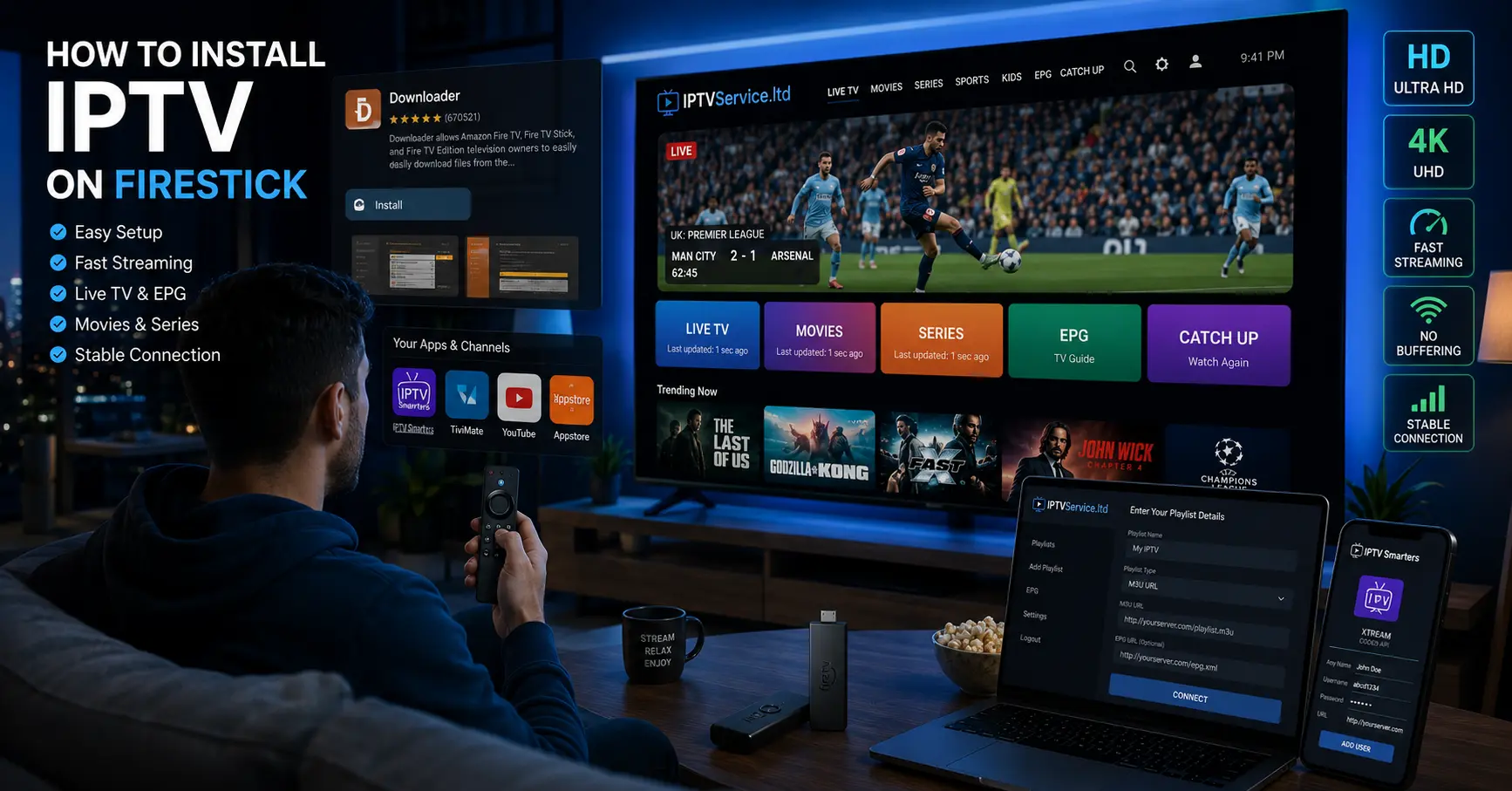
How to Install IPTV on Firestick: 5 Proven Steps That Actually Deliver

There’s a moment and I’ve been there myself when you’re staring at your television, remote in hand, wondering why you’re still paying a fortune for channels you never watch. That’s usually the moment someone mentions IPTV, and suddenly a Firestick starts looking very interesting indeed.
Knowing how to install IPTV on Firestick is one of those skills that sounds daunting until you’ve done it once. After that, it feels almost laughably simple. This guide walks you through everything: the preparation, the installation, the configuration, and the bits that most tutorials conveniently skip over. Whether you’re technically confident or just persistent, you’ll get there.
What You Actually Need Before You Start
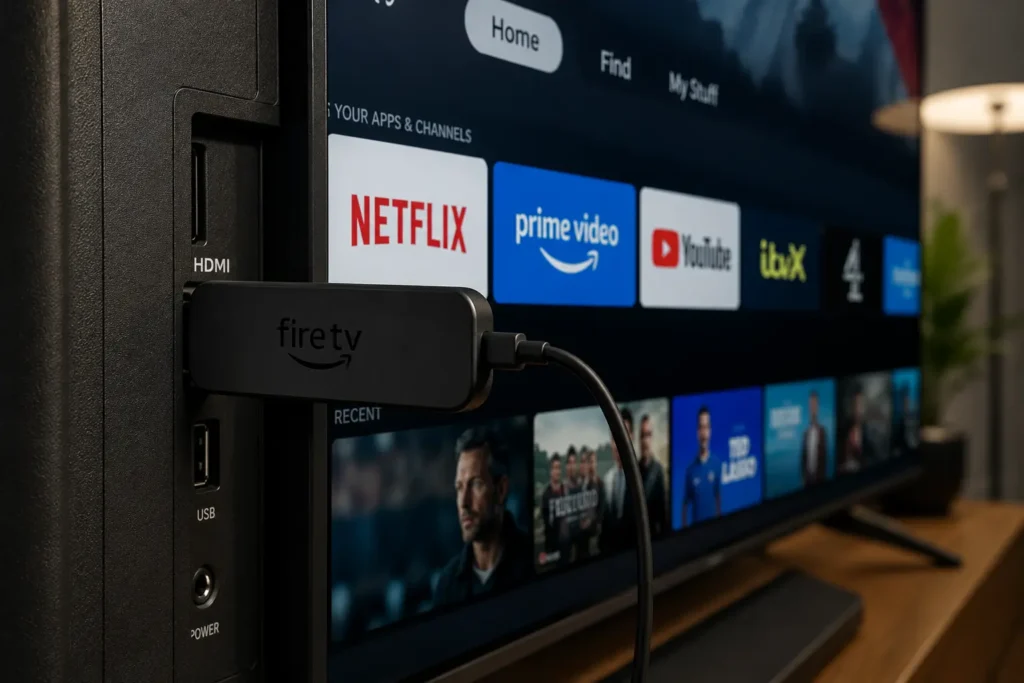
Before touching any settings, let’s be clear about what you’re working with. A Firestick is Amazon’s streaming device plug it into your TV’s HDMI port, connect it to your Wi-Fi, and you’ve got a capable little computer running a modified version of Android. That matters because it means you can run apps that Amazon hasn’t officially approved.
IPTV (Internet Protocol Television) works by streaming live TV channels and video-on-demand content over your internet connection rather than through a cable or satellite signal. You’ll need three things to make it function properly on your Firestick:
- A reliable internet connection 25 Mbps or faster is ideal for HD streaming
- An IPTV subscription from a provider (more on choosing one shortly)
- An IPTV player app installed on your Firestick
One thing worth noting upfront: your streaming quality is only as good as your connection and your provider. The Firestick itself is rarely the bottleneck.
How to Install IPTV on Firestick: The Core Process
This is the section you came for, so let’s get into it without unnecessary padding.
Step 1: Enable Apps from Unknown Sources
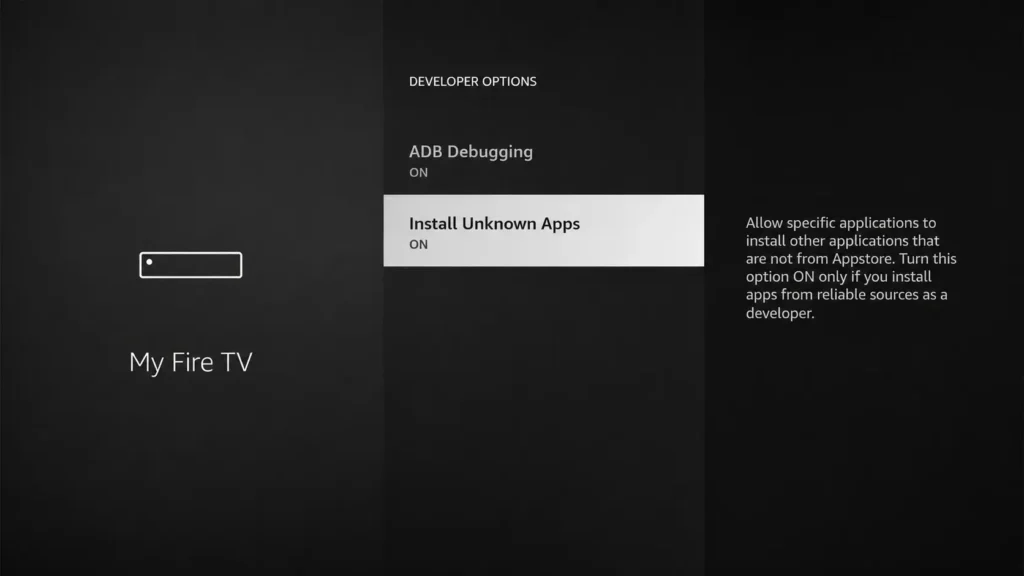
Amazon doesn’t allow sideloaded apps by default, so your first move is to change that. On your Firestick home screen, go to Settings, then My Fire TV, then Developer Options. You’ll see a toggle labelled “Apps from Unknown Sources” turn it on. The device will warn you about security; acknowledge it and move on.
If you’re on a newer Firestick model running Fire OS 7 or later, the option may instead be labelled “Install Unknown Apps” and will be nested under individual app permissions rather than a global toggle. The principle is the same.
Step 2: Install the Downloader App
The Downloader app by AFTV news is the standard tool for sideloading on Firestick, and it’s legitimately available in the Amazon App Store. Search for it, install it, and open it. You’ll be prompted to allow it to access files on your device grant that permission.
This app functions as both a browser and a file manager. You’ll use it to download the IPTV player APK directly onto your device. The folks at AFTV news have built a solid reputation in the streaming community, and Downloader has been recommended by publications like Cord Cutters News for years.
Step 3: Download Your IPTV Player
In the Downloader app, type the URL of the IPTV player you want to install. I’ll cover which player to choose in the next section for now, understand that you’re downloading an APK file (Android application package) directly from the developer’s official website.
Once downloaded, Downloader will automatically prompt you to install the file. Tap “Install,” wait a few seconds, and you’re done. The app will now appear in your Firestick’s app list.
Step 4: Add Your IPTV Playlist
Open your newly installed player and look for an option to add a playlist, source, or M3U URL. Your IPTV provider will have sent you a playlist URL (usually ending in .m3u or .m3u8) when you subscribed. Paste that URL into the relevant field.
Some providers also offer an Xtream Codes portal login instead of an M3U link. If that’s what you have, look for an “Xtream Codes” or “Portal” option in your player’s settings rather than the M3U field.
Step 5: Organize and Test
Once the playlist loads, your channels will populate automatically. Most players will sort them into categories, but this varies by provider. Take a few minutes to browse the categories, test a few channels, and check that the stream quality matches what you’re paying for.
That’s genuinely all there is to it. The whole process from enabling unknown sources to watching your first channel takes most people between 15 and 25 minutes.
Choosing the Right IPTV Player App
This is where a lot of guides go vague, and I think that’s a disservice. The player you choose affects your experience significantly, so it’s worth spending a moment here.
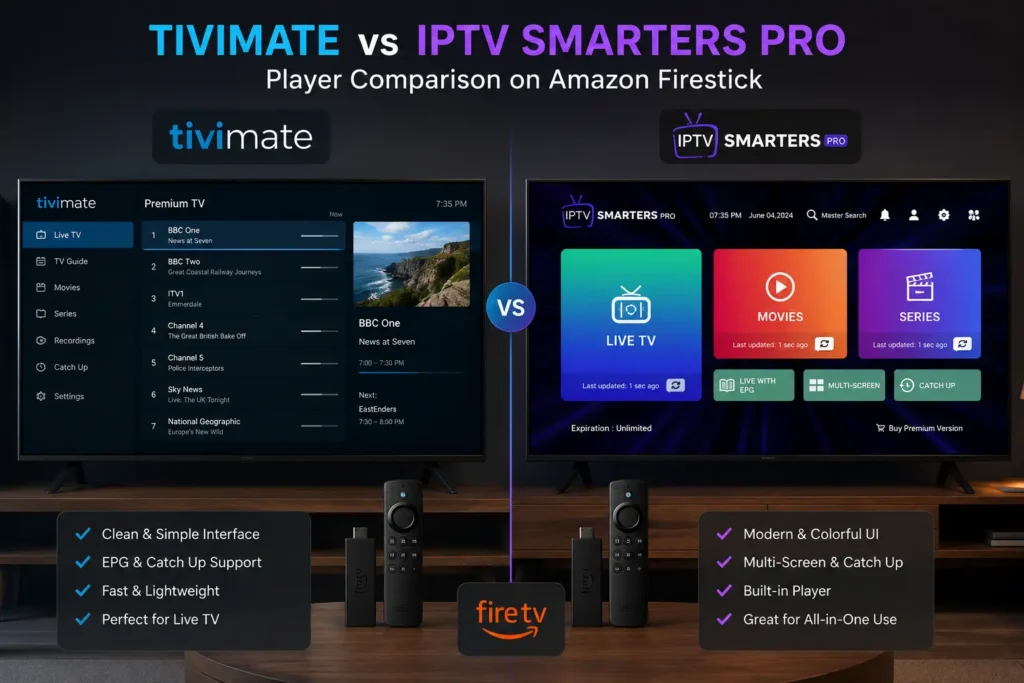
TiviMate is widely regarded as the best IPTV player for Firestick by serious streamers. The free version is functional, but the premium subscription (a modest one-off fee) unlocks features like multiple playlist support, EPG (electronic programme guide), catch-up TV, and a far cleaner interface. If you’re going to use IPTV regularly, it’s worth the cost.
IPTV Smarters Pro is a popular alternative with a more traditional TV-style layout. It works well with Xtream Codes providers in particular and handles EPG data reliably. Some users prefer its interface for families who aren’t particularly tech-savvy.
GSE Smart IPTV is another option it’s free, handles both M3U and Xtream Codes formats, and has a decent EPG system. It’s not as polished as TiviMate but gets the job done.
If you’re just testing the waters before committing to anything, start with the free version of TiviMate. You can always upgrade once you’ve confirmed your provider’s streams are worth it.
Sideloading vs. Native Apps: Which Route Should You Take?
Here’s a question worth sitting with: do you actually need to sideload anything, or is there a native Amazon App Store route?
For most IPTV use cases, sideloading is the standard approach because the major third-party IPTV players aren’t available on Amazon’s store. However, a handful of providers have developed their own branded apps that are available natively. If your specific IPTV provider offers a Firestick app through Amazon, that’s almost always the simpler and more stable route.
The sideloading method described in this guide is reliable and widely used, but it does require you to stay on top of updates manually apps won’t update themselves the way native Amazon Store apps do. If that sounds like a chore, check whether your provider has a native option first.
best IPTV providers UK 2026 → best iptv provider UK
Getting Your IPTV Playlist Working Properly
A playlist that won’t load, or one that loads but plays nothing, is the most common frustration people encounter when they first figure out how to install IPTV on Firestick. Nine times out of ten, it’s one of three issues.
The M3U URL has expired or changed. IPTV providers occasionally rotate their playlist URLs for security or technical reasons. If your playlist suddenly stops working, log into your provider’s account panel and grab a fresh URL.
Your subscription has lapsed. It sounds obvious, but it’s easy to forget if you’re on a monthly plan. Check your provider’s dashboard.
Your player isn’t handling the EPG correctly. Electronic programme guide data is loaded separately from channel streams, and sometimes the EPG URL needs to be entered manually. Your provider should supply this it’s usually a separate link in your account settings.
A quick note on EPG: if your programme guide shows channels but no schedule information, the timing offset might be wrong for your timezone. Most players have a timezone or UTC offset setting buried in EPG preferences. Adjusting it by an hour or two usually resolves the blank schedule problem.
Common Problems and How to Fix Them
Even with everything set up correctly, Firestick IPTV occasionally misbehaves. Here’s a practical breakdown of what you’re likely to encounter.
| Problem | Likely Cause | Fix |
|---|---|---|
| Buffering every few minutes | ISP throttling or weak Wi-Fi | Use a VPN or move closer to your router |
| App crashes on launch | Firestick low on memory | Clear cache via Settings > Applications |
| Channels load but no audio | Audio passthrough mismatch | Change audio output to stereo in Firestick settings |
| EPG not showing | Wrong EPG URL or timezone | Re-enter EPG URL; adjust UTC offset |
| Black screen on some channels | Stream format incompatibility | Try a different IPTV player app |
The buffering issue deserves a fuller mention. Some internet service providers actively throttle IPTV traffic, particularly during peak hours. A VPN routes your traffic through an encrypted tunnel, making it harder for your ISP to identify and throttle streaming data. Services like ExpressVPN and NordVPN both have Firestick apps available natively in the Amazon store, which makes setup straightforward.
Is This Legal? The Honest Answer
I’m going to be straight with you here, because too many guides on this topic either dodge the question or bury it in vague language.
Installing IPTV apps on your Firestick is entirely legal. The apps themselves are just video players TiviMate and IPTV Smarters Pro are no different, legally speaking, from VLC or any other media player.
What determines legality is the content your best IPTV subscription UK is streaming. Licensed IPTV services that pay for the rights to broadcast channels are perfectly legal. Services that stream Sky Sports, Premier League matches, or HBO content without licensing agreements are operating illegally, and using them could technically expose you to copyright liability depending on your jurisdiction.
Is this a grey area that millions of people operate in anyway? Yes, frankly. But it’s worth understanding what you’re actually doing. TechRadar has covered this distinction clearly on multiple occasions, and it’s the same position consistently taken by legal commentators who focus on digital media rights.
This guide helps you understand how to install IPTV on Firestick. What you stream after that is your responsibility.
Frequently Asked Questions
Q1: How to install IPTV on Firestick without a computer? You don’t need a computer at all. The entire process of how to install IPTV on Firestick is done directly on the device itself using the Downloader app. You download the player app, install it, and configure your playlist all from the Firestick’s own interface. The only thing you might use another device for is copying your M3U URL from your provider’s account email.
Q2: Which is the best IPTV player for Firestick? TiviMate is consistently rated the best option by experienced IPTV users due to its clean interface, reliable EPG handling, and multi-playlist support. IPTV Smarters Pro is a strong alternative, particularly for users whose providers use Xtream Codes. The right choice depends slightly on your provider’s format and how much you care about programme guide accuracy.
Q3: How to install IPTV on Firestick safely without getting banned? Amazon doesn’t ban Firesticks for running IPTV apps sideloading is a supported developer feature. The main risk is using unlicensed content services, which could attract attention from copyright enforcement bodies rather than from Amazon. Using a reputable VPN reduces your exposure if you’re in a jurisdiction where this is a concern.
Q4: Why does my IPTV keep buffering on Firestick? Buffering on Firestick is almost always caused by one of three things: a slow or unstable internet connection, ISP throttling of streaming traffic, or a server-side problem with your IPTV provider. Try running a speed test, switching to a wired connection via an Ethernet adapter, or connecting through a VPN. If the problem persists across multiple VPN servers, the issue is likely with your provider’s infrastructure.
Q5: Can I install IPTV on an older Firestick model? Yes, though older models like the original Fire TV Stick may struggle with higher-bitrate streams due to limited processing power. If you’re experiencing choppy playback on an older device and your connection speed is not the issue, lowering the stream quality in your IPTV player’s settings usually helps. The process of how to install IPTV on Firestick is the same regardless of model generation.